

Quick Summary
MacBook Fan Runs Constantly can be caused by overheating, excessive background activity, dust buildup, blocked airflow, aging thermal paste, or hardware issues. This guide explains the most common reasons your MacBook fan keeps running, how to identify whether the problem is software or hardware related, practical troubleshooting steps you can try yourself, and when professional repair is the safest solution to restore cooling performance and prevent long-term damage.
In This Blog, You’ll Learn:
- Why your MacBook fan runs constantly, even during light tasks
- The most common causes of MacBook overheating
- How software and hardware issues affect cooling performance
- Simple troubleshooting steps to reduce fan noise and heat
- How dust, blocked vents, and thermal paste impact your MacBook
- Warning signs that indicate your MacBook needs professional repair
- Tips to keep your MacBook running cooler and more efficiently
Introduction
Your MacBook is designed to operate quietly while delivering powerful performance for work, study, entertainment, and creative tasks. Whether you’re editing photos, attending online meetings, writing documents, programming, or simply browsing the web, Apple’s intelligent cooling system automatically adjusts fan speed to keep internal components operating at safe temperatures. Under normal conditions, the fan should only become noticeably louder during demanding activities that place extra stress on the processor or graphics system.
If your MacBook fan runs constantly, it can be a sign that something isn’t working as expected. Many MacBook owners become concerned when the cooling fan starts running loudly even during light tasks such as web browsing, checking emails, or watching videos. A constantly running fan often indicates that the MacBook is working harder than it should, and while this doesn’t always mean something is seriously wrong, it is usually a sign that the device requires attention.
Several different factors can cause excessive fan activity. Background applications, outdated software, accumulated dust, blocked air vents, battery issues, worn thermal paste, or failing internal components can all force the cooling system to operate continuously. If these issues are ignored, prolonged overheating may eventually reduce performance, shorten battery life, or contribute to hardware failure.
Fortunately, many overheating problems can be identified and resolved before permanent damage occurs. Understanding why your MacBook fan is constantly running allows you to take the right steps to improve cooling and maintain long-term performance.
At Blackapple Cellular, we regularly help customers seeking MacBook Repair Victoria after experiencing overheating, excessive fan noise, reduced performance, or unexpected shutdowns. Through professional diagnostics and expert repairs, we identify the exact cause of cooling problems and recommend the most effective solution.
In this guide, you’ll learn why MacBook fans runs Constantly , the most common causes of overheating, how software and hardware problems differ, and when professional repair becomes the safest option.
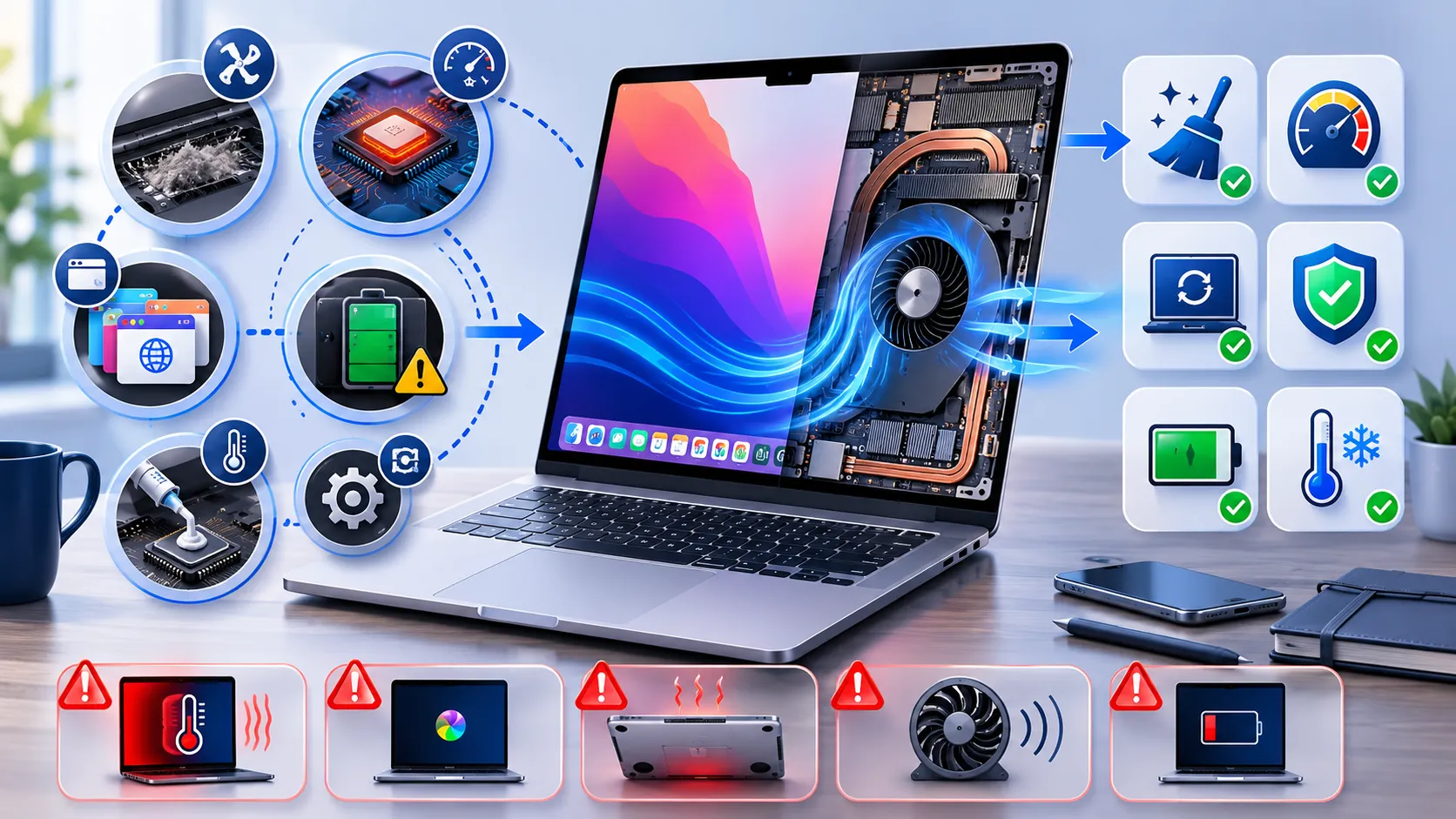
Why Your MacBook Fan Keeps Running Even During Light Tasks
Many people assume that a loud cooling fan automatically means their MacBook is damaged. In reality, the fan is simply doing its job—removing excess heat from the processor and other internal components. The important question isn’t whether the fan is running, but why it needs to work so hard.
Modern MacBooks constantly monitor internal temperatures. Whenever the processor, graphics chip, or battery becomes warmer than normal, the system automatically increases fan speed to maintain safe operating temperatures.
Background Applications May Be Working Harder Than You Realise
Even if you’re only browsing the internet, numerous applications may continue running in the background.
Examples include:
- Cloud storage synchronisation
- Automatic backups
- Video conferencing software
- Antivirus scans
- Browser extensions
- Software updates
These background processes consume processor resources and generate additional heat.
Too Many Browser Tabs
Modern websites use far more system resources than they did a few years ago.
Keeping dozens of browser tabs open simultaneously increases:
- Memory usage
- Processor activity
- Power consumption
- Internal temperatures
Closing unnecessary tabs often reduces fan activity immediately.
Software Updates and Indexing
After installing macOS updates, your MacBook may temporarily perform background tasks such as:
- File indexing
- Photo analysis
- Spotlight indexing
- Cloud synchronisation
During this period, higher fan speeds are completely normal.
Once these processes finish, fan noise usually returns to normal.
Warm Working Environments
External temperatures also affect cooling performance.
Using your MacBook:
- Outdoors in direct sunlight
- On soft bedding
- On cushions
- Inside hot vehicles
reduces airflow and increases internal temperatures.
Using the device on a hard, flat surface improves ventilation considerably.
Normal Fan Behaviour Isn’t Always a Problem
Occasional fan noise during demanding tasks such as:
- Video editing
- Graphic design
- Programming
- Gaming
- Large file transfers
is completely expected.
The concern arises when the fan continues running loudly during very light everyday activities.
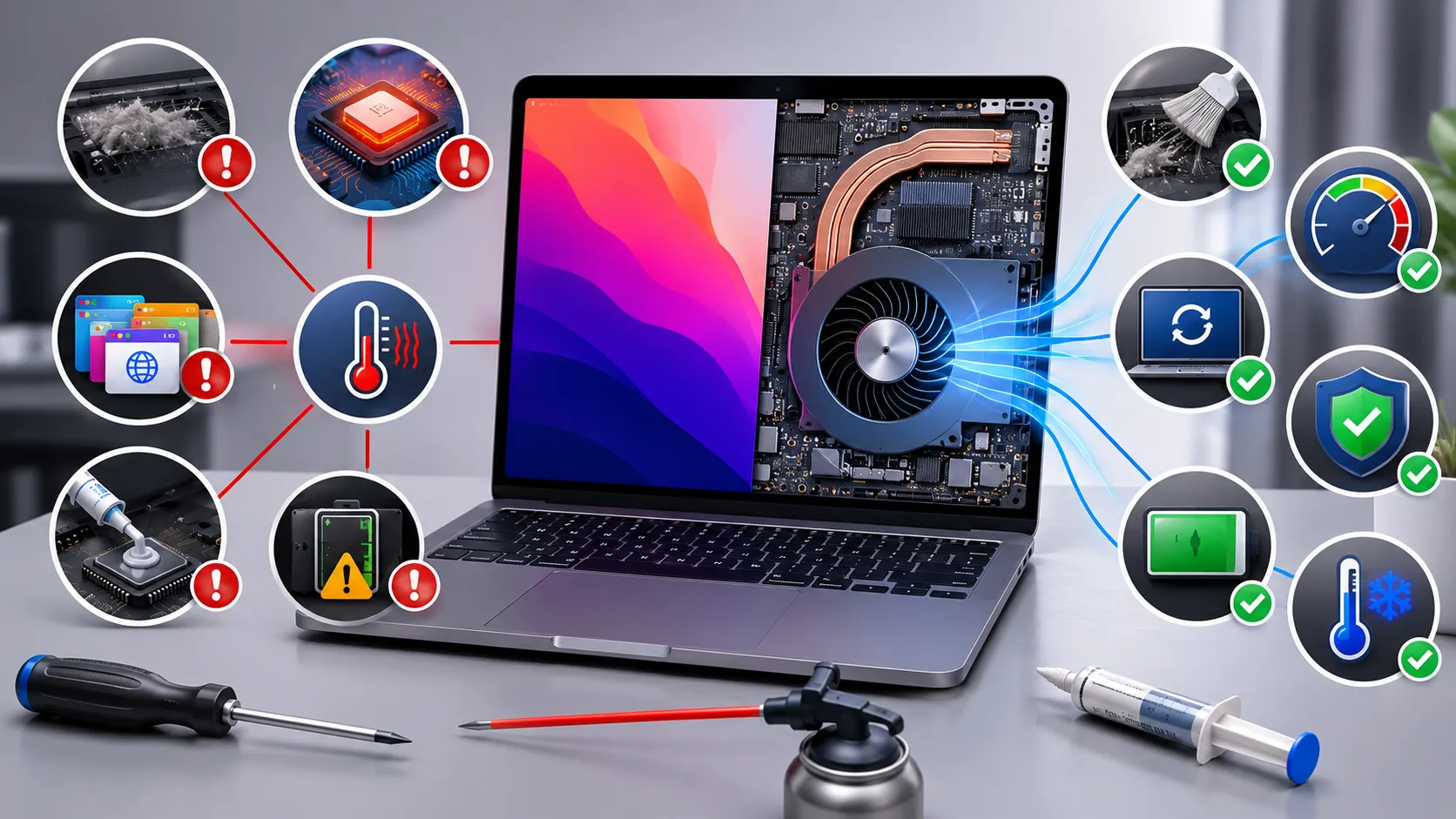
Common Reasons Your MacBook Is Overheating
If your MacBook feels unusually hot even while performing simple tasks, several different hardware and software issues may be contributing.
Understanding these causes helps determine whether basic maintenance is sufficient or professional repair is needed.
Dust Blocking Internal Cooling
Dust naturally accumulates inside every laptop over time.
As dust builds around:
- Cooling fans
- Heat sinks
- Air vents
airflow becomes restricted.
Reduced airflow prevents heat from escaping efficiently, forcing the fan to operate at higher speeds.
High Processor Usage
Applications that consume excessive processor resources generate additional heat.
Common examples include:
- Video rendering
- Virtual machines
- Large spreadsheets
- Multiple browser windows
- Background syncing
Activity Monitor can help identify software using unusually high system resources.
Aging Thermal Paste
Thermal paste transfers heat from the processor to the cooling system.
After years of use, this material gradually dries out and becomes less effective.
Poor heat transfer results in:
- Higher temperatures
- Constant fan operation
- Reduced processor performance
Replacing thermal paste should only be performed by experienced technicians.
Battery Problems
A deteriorating battery may contribute to increased heat generation.
Swollen or aging batteries sometimes place additional stress on internal components, increasing cooling requirements.
Professional diagnostics determine whether battery condition is affecting overall performance.
Outdated Software
Older software versions occasionally contain bugs that increase processor usage.
Keeping macOS and installed applications updated helps improve system efficiency and thermal management.
Blocked Air Vents
Many users unknowingly block the MacBook’s cooling vents while working.
Placing the laptop on soft surfaces such as:
- Blankets
- Pillows
- Sofas
restricts airflow and increases operating temperatures.
At Blackapple Cellular, we regularly perform MacBook repair in Victoria and MacBook repair in Langford, helping customers restore proper cooling performance through professional diagnostics and maintenance.
Software vs Hardware Problems Explained
When a MacBook begins overheating or the cooling fan runs constantly, many users immediately assume there is a hardware failure. In reality, overheating can be caused by either software or hardware problems, and understanding the difference is essential before attempting any repairs.
Professional diagnostics help identify the actual cause, ensuring unnecessary components are not replaced.
Software Problems That Cause Overheating
Software issues often force the processor to work much harder than normal.
Common examples include:
- Frozen background processes
- Software bugs
- Corrupted applications
- Browser extensions
- Malware (rare on macOS but still possible)
- Continuous cloud synchronisation
These problems increase CPU usage, causing the fan to spin faster to remove excess heat.
Fortunately, many software-related overheating issues can be resolved without replacing any hardware.
Hardware Problems That Generate Excess Heat
Hardware faults are more likely when overheating continues even after restarting the MacBook or closing demanding applications.
Common hardware causes include:
- Dust blocking cooling vents
- Worn cooling fans
- Aging thermal paste
- Battery deterioration
- Faulty temperature sensors
- Motherboard issues
Unlike software problems, these faults usually require professional inspection and repair.
How Professional Diagnostics Identify the Difference
Experienced technicians use specialised diagnostic tools to evaluate:
- Processor temperature
- Fan performance
- Battery health
- Background processes
- Thermal sensor readings
- Hardware condition
This allows the exact cause of overheating to be identified before any repairs begin.
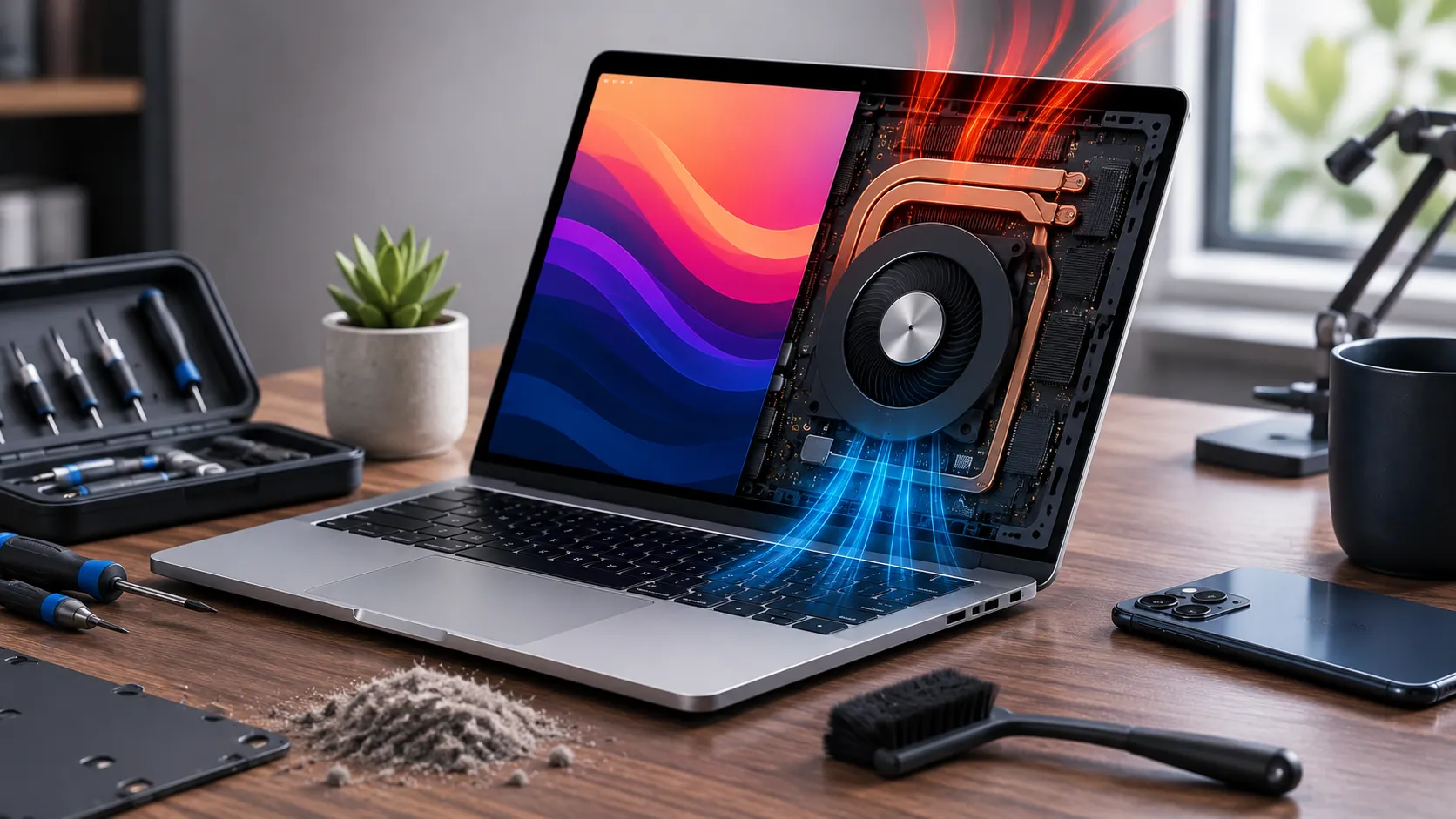
Why Guesswork Can Be Expensive
Replacing components without confirming the real problem often leads to unnecessary repair costs.
For example:
- A noisy fan may actually be caused by software.
- High temperatures may result from blocked vents rather than a failing fan.
- Battery problems may imitate cooling system faults.
Accurate diagnostics eliminate unnecessary repairs and save both time and money.
How Dust and Poor Airflow Affect Performance
Dust is one of the most overlooked causes of MacBook overheating. Even in clean homes and offices, fine particles gradually accumulate inside the laptop through its cooling vents. Over time, this buildup restricts airflow and reduces the efficiency of the cooling system.
Without proper airflow, internal temperatures rise quickly, forcing the fan to work much harder.
Dust Reduces Cooling Efficiency
The MacBook cooling system relies on unrestricted airflow.
As dust accumulates around:
- Cooling fans
- Heat sinks
- Air vents
heat becomes trapped inside the device.
The processor then operates at higher temperatures for longer periods.
Higher Temperatures Reduce Performance
Modern MacBooks include built-in thermal protection.
When temperatures become too high, the system automatically lowers processor speed to protect internal components.
This process, known as thermal throttling, often causes:
- Slow performance
- Delayed application loading
- Reduced multitasking
- Sluggish response
Many users mistakenly believe their MacBook has become outdated when overheating is actually responsible.
Soft Surfaces Block Airflow
Using your MacBook on:
- Beds
- Sofas
- Blankets
- Cushions
blocks the ventilation openings underneath the laptop.
This prevents cool air from entering the cooling system and makes overheating much more likely.
Using a hard, flat surface greatly improves airflow.
Regular Cleaning Makes a Difference
Keeping the outside of your MacBook clean is helpful, but internal dust removal requires specialised tools and careful handling.
Professional internal cleaning removes accumulated dust safely without damaging delicate components.
Routine maintenance often restores quieter fan operation and improves overall system performance.
When Professional MacBook Cleaning or Repair Is Needed
Although some overheating issues can be reduced through software updates or better ventilation, certain warning signs indicate that professional inspection is the safest solution.
Ignoring these symptoms may eventually lead to more serious hardware damage.
The Fan Runs Constantly Every Day
If the cooling fan remains loud even while browsing the internet or writing documents, professional diagnostics should be performed.
Continuous fan activity often indicates hidden cooling problems.
The MacBook Feels Extremely Hot
Warm temperatures during demanding tasks are normal.
However, if the aluminium body becomes too hot to use comfortably during light work, the cooling system requires attention.
Performance Has Become Much Slower
If your MacBook suddenly feels slower despite having enough storage and memory available, overheating may be reducing processor performance.
Professional inspection identifies whether thermal throttling is responsible.
Unexpected Shutdowns
MacBooks automatically shut down when internal temperatures become dangerously high.
Repeated thermal shutdowns should never be ignored.
Early repair helps prevent permanent component damage.
Physical Damage or Liquid Exposure
Previous drops or liquid spills sometimes affect internal cooling components even if the MacBook initially appears to function normally.
Professional diagnostics determine whether hidden hardware damage exists.
Whether you’re searching for MacBook Repair Near You, trusted MacBook Repair Victoria, or reliable MacBook repair in Langford, early inspection helps prevent overheating from causing more extensive internal damage.
Conclusion
A constantly running MacBook fan is often your laptop’s way of telling you that something isn’t working as efficiently as it should. While temporary fan noise during demanding tasks is perfectly normal, continuous overheating during everyday activities may indicate software conflicts, dust buildup, blocked airflow, aging thermal paste, battery issues, or other hardware problems that deserve attention.
Simple maintenance, such as improving ventilation, updating software, and reducing unnecessary background activity, can often improve cooling performance. However, persistent overheating should never be ignored, as excessive heat can reduce performance, shorten battery life, and eventually damage important internal components.
At Blackapple Cellular, we provide trusted MacBook Repair Victoria using advanced diagnostics, professional cleaning, and experienced technicians who specialise in resolving overheating and performance issues. Whether you’re looking for MacBook Repair Near You, reliable MacBook repair, or expert MacBook repair in Langford, we’re committed to restoring your MacBook’s performance and helping it run cooler, quieter, and more efficiently.
People Also Ask
1. Why is my MacBook fan suddenly running so loudly?
High processor activity or blocked vents. Heavy background apps, multiple browser tabs, or internal dust force the processor to work harder, triggering maximum fan speed.
2. Is it bad if my MacBook fan runs constantly?
Yes. While it prevents immediate burnouts, constant high heat degrades battery life, causes system lag, and wears down internal hardware over time.
3. How do I stop my MacBook fan from running so fast?
Close heavy background apps via Activity Monitor, work on a hard, flat surface to ensure airflow, keep macOS updated, and get internal dust professionally cleaned.
4. Can dust make my MacBook overheat and run slow?
Yes. Dust clogs the cooling vents and traps heat. When it gets too hot, the MacBook automatically slows down its processor speed (thermal throttling) to prevent hardware damage.
5. Why does my MacBook get hot while just browsing the web?
Modern websites run heavy background scripts, ads, and video content. Dozens of open tabs or heavy browser extensions push CPU usage higher than expected.
6. Is my MacBook overheating caused by software or hardware?
-
Software: Heat drops shortly after restarting or closing apps.
-
Hardware: The fan stays loud constantly—even right after booting up or while sitting idle.
7. When should I bring my MacBook to Blackapple Cellular?
Visit our Victoria or Langford locations if your fan runs loudly non-stop, the body feels uncomfortably hot during basic tasks, or your Mac shuts down unexpectedly.
Frequently Asked Questions
Is it normal for my MacBook fan to run during heavy tasks?
Yes. Activities such as video editing, gaming, programming, and large file transfers naturally generate more heat, causing the fan to operate at higher speeds.
Why is my MacBook fan running while I’m only browsing the internet?
Background applications, software updates, dust buildup, or cooling system problems may cause excessive fan activity even during light tasks.
Can dust really make my MacBook slower?
Yes. Dust restricts airflow, increases internal temperatures, and causes thermal throttling, which automatically reduces processor performance.
Is overheating bad for my MacBook battery?
Yes. Prolonged exposure to high temperatures accelerates battery aging and may reduce overall battery lifespan.
Should I clean the inside of my MacBook myself?
Internal cleaning requires specialised tools and experience. Professional cleaning is recommended to avoid accidental damage to delicate components.
When should I seek professional MacBook repair?
If your MacBook overheats regularly, the fan runs constantly, performance declines significantly, or the device shuts down unexpectedly, professional diagnostics are recommended.