

Quick Summary
MacBook Storage running low can make your laptop slow, unresponsive, and difficult to use. In this guide, you’ll learn why low storage affects performance, where your storage space is really going, and the safest ways to free up space without deleting important files. We’ll also explain when a storage upgrade or professional help might be the better option.
In This Blog, You’ll Learn:
- Why your MacBook storage gets full faster than expected
- How low storage affects your MacBook’s speed and performance
- Where hidden files and system data take up valuable space
- Safe and easy ways to free up storage without losing important files
- When an SSD upgrade is the right solution for more storage
- Signs that it’s time to get professional help for storage-related issues
Introduction
Your MacBook is designed to deliver fast, responsive performance whether you’re working, studying, editing videos, managing business files, or simply browsing the internet. However, even the most powerful MacBook can begin feeling sluggish when available storage becomes critically low. If you’ve started seeing the “Your disk is almost full” notification, applications take longer to open, or saving files has become frustrating, your MacBook may simply be running out of storage rather than suffering from a serious hardware failure.
Many users believe deleting a few photos or emptying the Downloads folder will completely solve the problem. While these steps may free up some space, they often fail to address the larger hidden files and system data quietly consuming hundreds of gigabytes behind the scenes. Cached files, application data, duplicate downloads, outdated backups, temporary files, and forgotten media libraries gradually accumulate over time, reducing both available storage and overall system performance.
Low storage affects much more than your ability to save files. macOS relies on available free space for virtual memory, software updates, application performance, and temporary system operations. When storage becomes almost full, your MacBook may slow down significantly, freeze during multitasking, experience application crashes, or struggle to install important security updates.
Fortunately, a full storage drive doesn’t always mean you need a new laptop. In many cases, careful storage management or a professional assessment can restore excellent performance. For some older MacBook models, upgrading the internal SSD may provide an even greater improvement.
At Blackapple Cellular, we regularly help customers seeking MacBook repair after noticing poor performance caused by limited storage, SSD issues, or aging hardware. Our technicians perform detailed diagnostics to determine whether simple optimisation, storage upgrades, or hardware repairs offer the best long-term solution.
In this guide, you’ll learn why low storage slows your MacBook down, where hidden files consume valuable space, safe ways to recover storage without losing important data, and when professional assistance becomes worthwhile.
Why Low Storage Slows Down Your MacBook
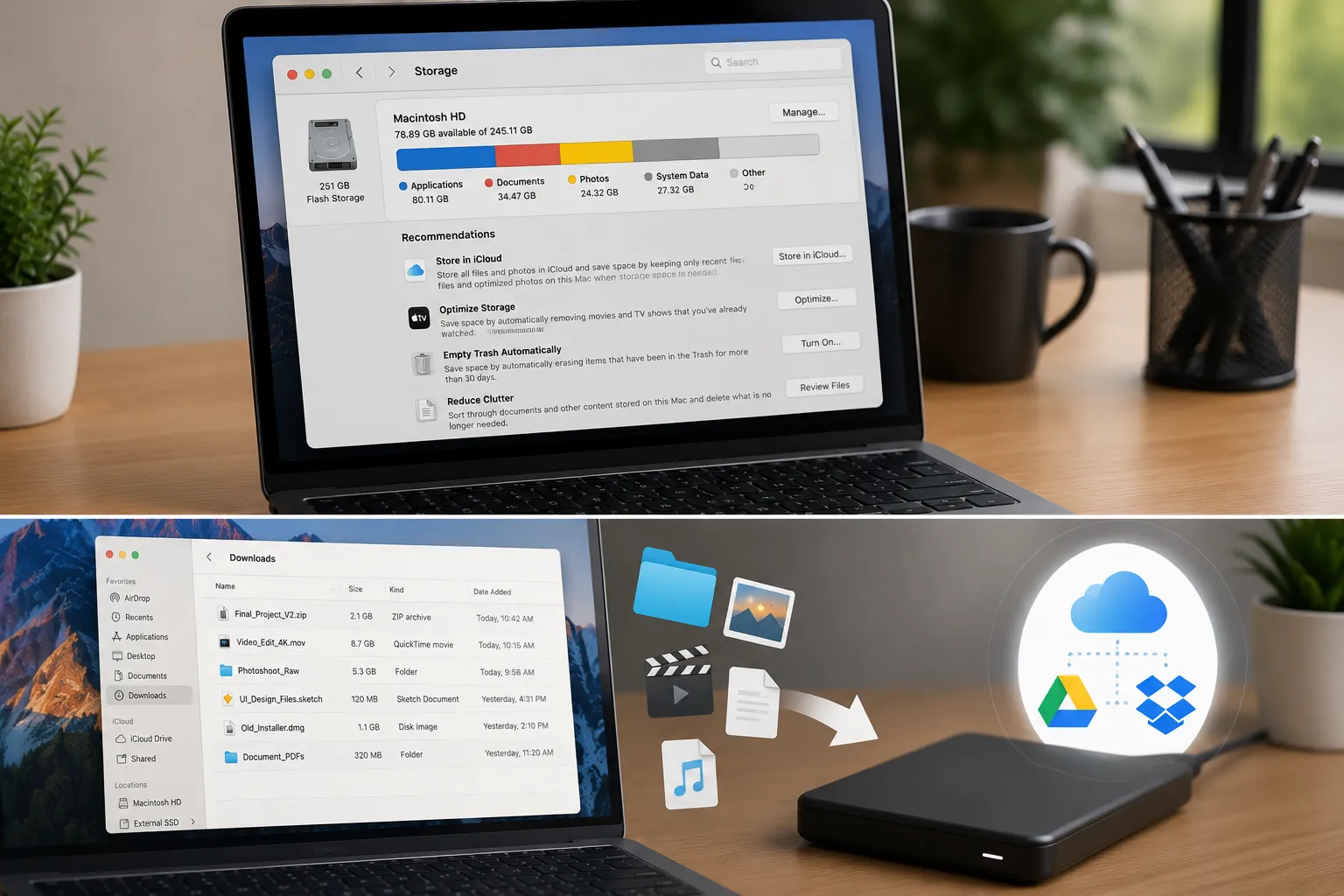
Many people assume storage only determines how many files their MacBook can hold. In reality, available storage also plays a critical role in overall system performance. macOS depends on free disk space for many background operations, meaning a nearly full drive affects much more than file storage.
macOS Uses Free Space as Working Memory
When physical RAM becomes heavily used, macOS creates temporary virtual memory on the internal storage drive.
If available storage becomes limited:
- Applications respond more slowly.
- Multitasking becomes less efficient.
- Large projects take longer to process.
- Overall responsiveness decreases.
Adequate free space helps the operating system manage memory much more effectively.
Software Updates Need Free Storage
System updates often require several gigabytes of available storage before installation can begin.
Insufficient storage may result in:
- Failed updates
- Security vulnerabilities
- Software compatibility issues
- Reduced system stability
Keeping sufficient free space allows updates to install successfully.
Applications Need Temporary Working Space
Creative software such as photo editors, video editing applications, design programs, and development tools constantly create temporary working files.
When storage becomes limited, these applications often:
- Load more slowly
- Freeze during processing
- Export files more slowly
- Crash unexpectedly
Professionals working with large projects notice these slowdowns first.
Spotlight Indexing and Background Tasks Slow Down
macOS continuously indexes files to improve search speed.
When storage is nearly full, these background processes become less efficient, increasing processor activity and reducing responsiveness.
Performance Declines Gradually
Storage-related slowdowns often develop slowly over months.
Many users don’t notice the problem until:
- Boot times increase.
- Applications freeze.
- Finder becomes sluggish.
- Saving files takes longer.
- System warnings begin appearing.
Recognising these signs early helps avoid unnecessary frustration.
The Biggest Files Taking Up Hidden Space
Deleting a few documents rarely solves storage problems because the largest space consumers are often hidden from everyday view.
Understanding where storage disappears helps recover significantly more space safely.
System Cache Files
Applications constantly create temporary cache files to improve performance.
Over time, these files may occupy several gigabytes of storage.
Most cache files can be safely managed without affecting important personal data.
Downloads Folder
The Downloads folder often contains forgotten files such as:
- Installation packages
- PDFs
- Duplicate photos
- Archived projects
- Old videos
Reviewing this folder regularly often frees significant storage.
Large Video Files
Videos recorded on modern smartphones or cameras consume storage quickly.
High-resolution recordings may occupy several gigabytes each.
Moving older videos to external storage or cloud services helps recover valuable disk space.
Old Backups
Local backups created by applications or devices may remain stored long after they are no longer needed.
Removing outdated backups often recovers considerable storage without affecting current files.
Unused Applications
Applications installed years ago frequently remain on the MacBook despite no longer being used.
Many programs also leave behind support files that continue occupying storage.
Removing unnecessary applications helps improve both storage availability and overall system organisation.
Duplicate Files
It’s surprisingly common to store multiple copies of the same photos, videos, presentations, or documents.
Duplicate files quietly consume storage while providing little value.
Professional storage analysis tools help identify these duplicates safely.
At Blackapple Cellular, we frequently assist customers seeking MacBook Repair Victoria after discovering that hidden storage consumption—not hardware failure—is responsible for poor system performance.
Easy Ways to Recover Storage Without Deleting Important Files
Running out of storage doesn’t mean you have to delete your favourite photos, important documents, or work projects. In many cases, a few smart storage management techniques can recover a surprising amount of space while keeping your valuable files safe.
The goal is to remove unnecessary data—not important memories or essential work.
Empty the Trash Regularly
Many users delete files but forget that they remain stored in the Trash until it is emptied.
Over time, the Trash may contain:
- Large videos
- Old downloads
- Duplicate documents
- Photos
- Installation files
Emptying the Trash regularly is one of the quickest ways to recover storage.
Review the Downloads Folder
The Downloads folder often becomes one of the largest storage consumers on a MacBook.
Check for:
- Old installers
- ZIP archives
- Duplicate downloads
- Temporary project files
- PDFs you no longer need
Removing unnecessary downloads helps free valuable storage without affecting your personal files.
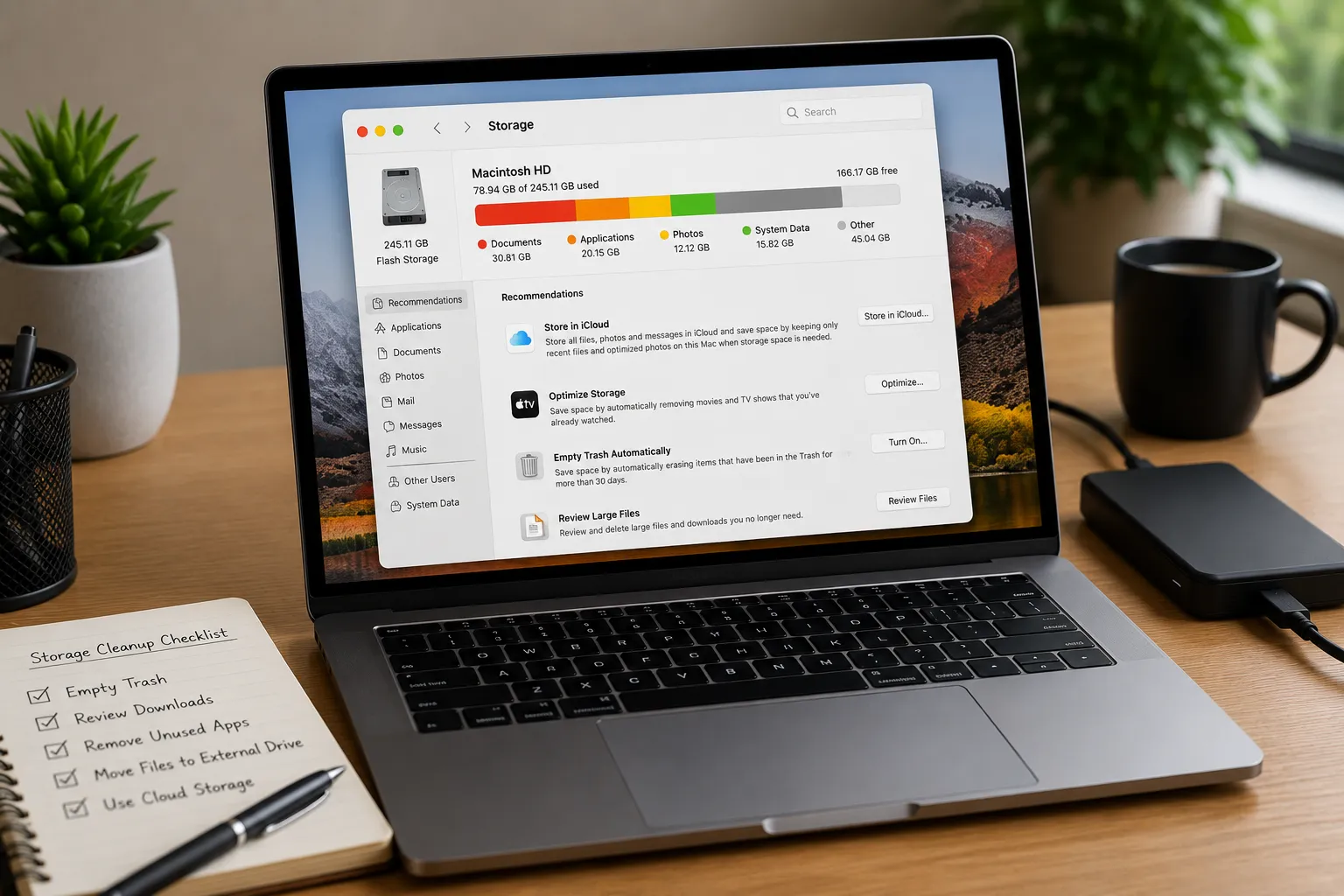
Move Large Files to External Storage
If you regularly work with:
- Videos
- High-resolution photos
- Design projects
- Music libraries
- Large presentations
consider moving completed projects to an external SSD or hard drive.
This keeps your MacBook storage available for active work while preserving important files.
Use Cloud Storage for Older Files
Cloud storage provides another excellent way to reduce local storage usage.
Frequently accessed files can remain on your MacBook, while older files are securely stored online and downloaded only when needed.
This approach keeps storage available without permanently deleting valuable information.
Remove Unused Applications
Applications that haven’t been opened for months often continue occupying several gigabytes of storage.
Uninstalling software you no longer use helps recover storage and reduces unnecessary background activity.
Be sure to remove associated support files where appropriate to maximise available space.
Organise Your Desktop
A desktop filled with hundreds of files and folders can affect overall responsiveness.
Moving completed projects into organised folders improves both storage management and everyday productivity.
Check macOS Storage Recommendations
macOS includes built-in storage management tools that recommend safe ways to free up space.
These suggestions often include:
- Removing old files
- Emptying the Trash automatically
- Reviewing large files
- Optimising cloud storage
Reviewing these recommendations periodically helps maintain healthy storage levels.
Should You Upgrade Your SSD Instead?
For some MacBook owners, cleaning storage provides only temporary relief. If you frequently work with large files or constantly receive low-storage warnings despite careful file management, upgrading your internal SSD may provide a much better long-term solution.
However, SSD upgrades are not appropriate for every MacBook model, making professional advice important before proceeding.
When More Storage Makes Sense
An SSD upgrade is worth considering if you regularly:
- Edit videos
- Store RAW photos
- Develop software
- Manage large business files
- Work with graphic design projects
Additional storage provides more room for both files and macOS to operate efficiently.
SSD Performance Matters Too
Modern solid-state drives are significantly faster than older storage technologies.
Benefits include:
- Faster startup times
- Quicker application launches
- Improved file transfers
- Better multitasking
- Reduced loading times
If your MacBook supports SSD upgrades, performance improvements can be substantial.
Not Every MacBook Can Be Upgraded
Some newer MacBook models have storage permanently integrated into the logic board.
Professional inspection determines:
- Whether upgrades are possible.
- Which storage capacities are supported.
- Whether upgrading is cost-effective.
Attempting unsupported upgrades can lead to unnecessary expense or damage.
Consider Your Future Storage Needs
When choosing storage capacity, think beyond today’s requirements.
Planning for future projects, software updates, and growing photo or video libraries helps avoid running into the same storage limitations again.
When Professional Help Makes Sense
Although many storage problems can be managed at home, some situations require professional diagnostics to determine whether the issue involves storage, hardware, or another system component.
Ignoring these warning signs may eventually affect your MacBook’s overall reliability.
Your MacBook Is Still Slow After Cleaning Storage
If you’ve already removed unnecessary files but your MacBook remains sluggish, the slowdown may be caused by:
- SSD wear
- Battery deterioration
- Software corruption
- Background hardware faults
Professional diagnostics identify the actual cause.
Storage Warnings Keep Returning
Repeated low-storage notifications despite deleting files often indicate:
- Hidden system data
- Large application caches
- Corrupted storage information
- Unidentified storage usage
Professional analysis helps locate the files responsible.
Applications Frequently Crash
Storage problems sometimes cause:
- App crashes
- File saving errors
- Export failures
- System instability
Technicians determine whether storage limitations or hardware faults are responsible.
The MacBook Has Been Dropped or Exposed to Liquid
Physical impact or liquid exposure may damage the SSD, motherboard, or storage connections.
Professional inspection ensures valuable data remains protected while identifying any hidden hardware issues.
You Need More Storage Than Your MacBook Provides
If your daily work consistently exceeds available storage, technicians can advise whether optimisation, external storage, or an SSD upgrade provides the most practical long-term solution.
Whether you’re searching for MacBook Repair Near You, trusted MacBook Repair Victoria, or reliable MacBook repair in Victoria, professional diagnostics help ensure you invest in the right solution instead of replacing a perfectly repairable MacBook.
Conclusion
Running out of storage is one of the most common reasons a MacBook begins feeling slow, but it doesn’t always mean you need a new computer. Hidden files, outdated downloads, application caches, duplicate documents, and limited free space can all affect how efficiently macOS performs everyday tasks. By managing your storage carefully and following smart maintenance habits, you can often restore faster performance while protecting your important files.
However, if your MacBook continues experiencing low-storage warnings, sluggish performance, frequent crashes, or storage-related errors even after freeing up space, professional diagnostics can identify whether the issue involves SSD health, software, or another hardware component. In some cases, an SSD upgrade may provide the most effective long-term solution.
At Blackapple Cellular, we provide trusted MacBook repair using advanced diagnostics, honest recommendations, and experienced technicians who understand Apple hardware inside and out. Whether you need MacBook Repair Victoria, MacBook Repair Near You, or reliable MacBook repair in Langford, we’re committed to helping you maximise your MacBook’s performance and storage without unnecessary replacement.
Why is my MacBook slow when storage is almost full?
macOS uses free storage for virtual memory, temporary files, and background processes. When storage is nearly full, overall system performance may decline significantly.
How much free storage should I keep on my MacBook?
Keeping a reasonable amount of free storage helps macOS perform efficiently, install updates successfully, and manage temporary system files.
Is deleting files enough to improve performance?
Deleting unnecessary files often helps, but hardware issues such as SSD wear, battery problems, or software corruption may also contribute to poor performance.
Can I upgrade my MacBook SSD?
Some MacBook models support SSD upgrades, while others have storage permanently integrated into the logic board. Professional inspection determines the available options.
Will an SSD upgrade make my MacBook faster?
If your MacBook supports SSD upgrades and storage is limiting performance, upgrading may improve startup times, application loading, and overall responsiveness.
When should I seek professional MacBook repair?
If storage remains full after cleaning, applications crash frequently, performance continues declining, or your MacBook has suffered physical damage, professional diagnostics are recommended.