

Quick Summary
Internal Cleaning is one of the easiest ways to keep your laptop running cooler, quieter, and more efficiently. In this guide, you’ll learn how dust buildup affects your laptop’s performance, the warning signs that your cooling system needs attention, and why professional internal cleaning can help prevent overheating, improve performance, and extend your laptop’s lifespan.
In This Blog, You’ll Learn:
- Why dust buildup is harmful to your laptop
- The warning signs that your laptop needs Internal Cleaning
- How overheating affects speed, battery life, and performance
- Why dirty cooling fans make your laptop work harder
- The benefits of professional Internal Cleaning
- Why DIY internal cleaning can be risky
- When it’s time to visit a professional repair technician
Introduction
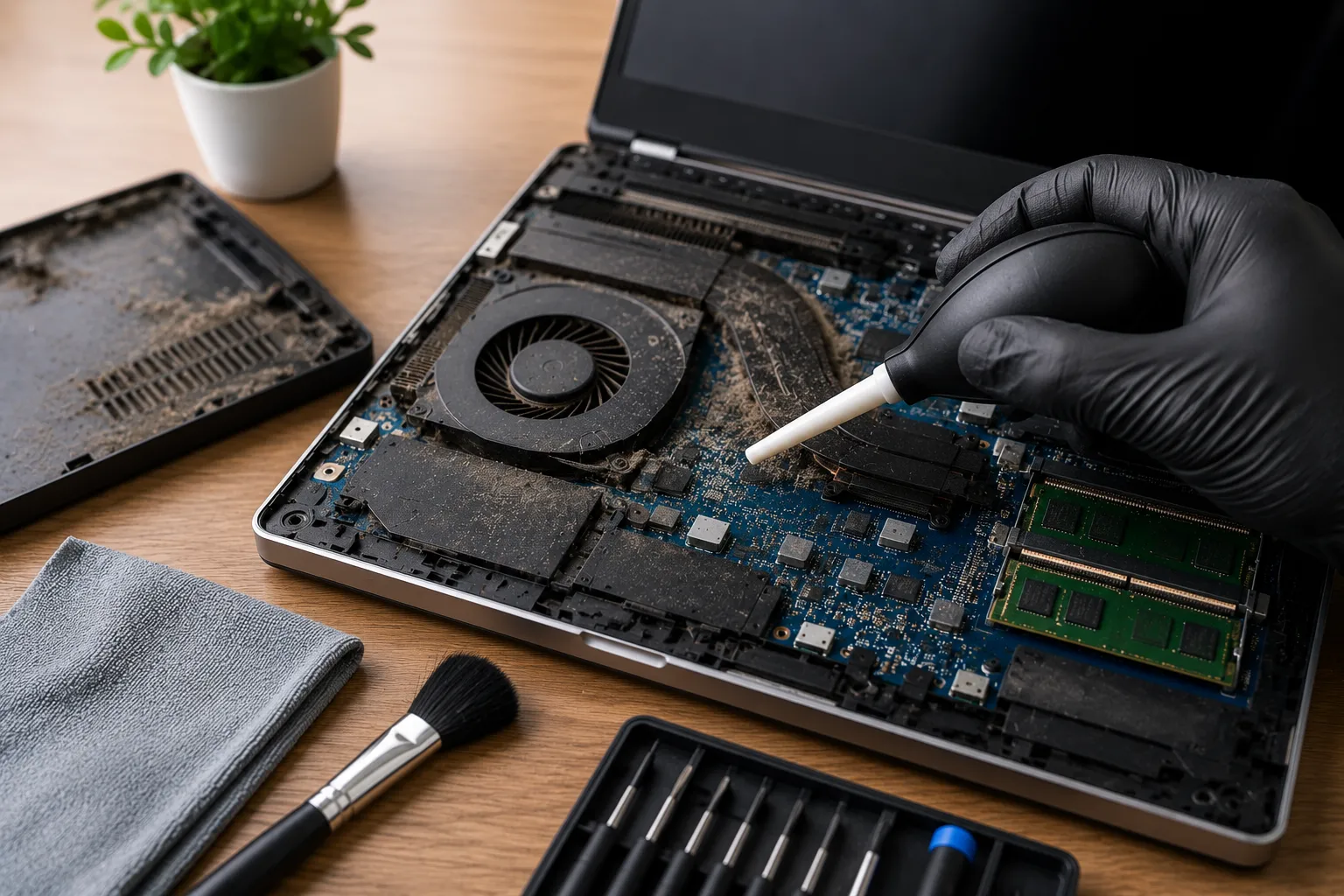
Laptops are designed to handle years of everyday use, whether you’re working from home, attending online classes, editing photos, running business software, or simply browsing the internet. While most people focus on protecting the outside of their laptop with a case or regular screen cleaning, very few think about what is happening inside the device. Over time, dust, lint, pet hair, and other airborne particles gradually build up around the cooling fan, air vents, and heat sink. This hidden buildup restricts airflow and makes it much harder for the laptop to stay cool.
When cooling becomes less efficient, your laptop has to work harder to maintain safe operating temperatures. The cooling fan spins faster and louder, the processor begins reducing its performance to control heat, and battery life may decline. Many users mistake these symptoms for an old or failing laptop, when the real issue is simply excessive dust inside the cooling system.
Ignoring internal dust can eventually lead to overheating, unexpected shutdowns, sluggish performance, and in severe cases, damage to important components such as the processor, motherboard, or battery. Regular professional cleaning helps prevent these problems while extending the lifespan of your laptop.
At Blackapple Cellular, we regularly help customers looking for computer repair near you after noticing overheating, loud fan noise, poor performance, or frequent crashes. Our technicians carefully clean internal cooling systems, inspect hardware, and ensure your laptop operates safely and efficiently.
In this guide, you’ll learn why dust is one of the biggest enemies of your laptop, how to recognise the warning signs of overheating, why professional internal cleaning is important, and when it’s time to seek expert assistance.
Why Dust Is One of the Biggest Enemies of Your Laptop
Dust may seem harmless, but inside a laptop it can have a significant impact on performance and reliability. Unlike desktop computers, laptops have very limited internal space, making efficient airflow essential for keeping temperatures under control.
Even a thin layer of dust can reduce the effectiveness of the cooling system.
Dust Blocks Airflow
Your laptop continuously draws cool air through small ventilation openings.
As dust accumulates around:
- Cooling fans
- Air vents
- Heat sinks
- Internal filters
airflow becomes restricted, trapping heat inside the device.
Poor airflow forces the cooling system to work much harder.
Heat Builds Up More Quickly
Without proper ventilation, heat generated by the processor and graphics chip cannot escape efficiently.
Higher internal temperatures often result in:
- Slower performance
- Louder cooling fans
- Reduced battery life
- Unexpected shutdowns
Keeping the cooling system clean allows heat to dissipate much more effectively.
Dust Makes Cooling Fans Less Efficient
Cooling fans rely on balanced blades to move air effectively.
Dust buildup adds weight to the blades and reduces airflow, making the fan less efficient while increasing noise levels.
In severe cases, the fan may even stop functioning properly.
Internal Components Wear Faster
Excessive heat places additional stress on sensitive components including:
- Processor
- Graphics chip
- SSD
- Memory
- Battery
Reducing operating temperatures helps extend the lifespan of these parts.
Everyday Environments Increase Dust Buildup
Dust enters laptops naturally during everyday use.
The problem becomes worse when laptops are frequently used:
- On beds
- On carpets
- Around pets
- In workshops
- In dusty offices
Regular professional cleaning removes accumulated debris before it causes performance problems.
Warning Signs Your Laptop Is Overheating
Overheating rarely happens without warning. Most laptops display several symptoms before excessive temperatures begin affecting hardware reliability.
Recognising these early signs allows you to address the issue before costly repairs become necessary.
The Fan Is Always Loud
A fan running continuously during light tasks usually indicates restricted airflow or excessive heat.
While occasional fan noise is normal during demanding activities, constant high-speed operation deserves attention.
The Laptop Feels Hot
If the keyboard, bottom panel, or palm rest becomes unusually warm during basic tasks, your cooling system may not be working efficiently.
Performance Has Become Slower
Modern processors automatically reduce speed when temperatures become too high.
This thermal protection often causes:
- Slower startup
- Lagging applications
- Reduced multitasking
- Delayed response
Many users mistake thermal throttling for hardware failure.
Unexpected Shutdowns
If your laptop suddenly powers off while working, overheating may be triggering automatic thermal protection.
Repeated shutdowns should never be ignored.
Battery Drains Faster
High temperatures force the cooling system to consume additional power while also reducing battery efficiency.
Over time, excessive heat accelerates battery aging.
Frequent Freezing
When internal temperatures remain high, overall system stability may decline.
This may cause:
- Random freezing
- Application crashes
- Blue screen errors (Windows)
- System restarts
Hot Air Barely Comes Out of the Vents
If the cooling fan is running loudly but very little air exits the ventilation openings, dust buildup is often restricting airflow inside the laptop.
At Blackapple Cellular, we provide trusted Computer Repair in Victoria and Computer repair in Langford, helping customers restore proper cooling performance through professional internal cleaning and diagnostics.
How Dirty Cooling Fans Affect Performance
Cooling fans are one of the most important components inside any laptop. Their job is to move cool air through the system and remove the heat generated by the processor, graphics chip, memory, and other internal components. When dust builds up inside the fan or around the heat sink, the cooling system becomes much less effective. As airflow decreases, temperatures rise, causing the laptop to work harder just to maintain safe operating conditions.
Many people believe a noisy fan simply means the laptop is getting old. In reality, a loud fan is often a warning sign that the cooling system needs attention.
The Processor Automatically Slows Down
Modern laptops include thermal protection that automatically reduces processor speed when temperatures become too high.
This process, known as thermal throttling, helps protect the hardware but also causes noticeable performance problems such as:
- Slow application loading
- Lag while browsing
- Reduced multitasking performance
- Delayed response when opening files
- Poor gaming or video editing performance
Cleaning the cooling system allows the processor to operate closer to its intended performance.
Cooling Fans Become Noisy
Dust-covered fan blades must spin faster to move the same amount of air.
Common symptoms include:
- Constant fan noise
- Loud buzzing sounds
- Fans running even while browsing the internet
- Increased vibration
Professional cleaning restores proper airflow and usually reduces unnecessary fan noise.
Heat Spreads Throughout the Laptop
When cooling becomes inefficient, heat isn’t limited to the processor.
Higher temperatures may affect:
- SSD
- RAM
- Battery
- Motherboard
- Wireless components
Prolonged heat exposure can shorten the lifespan of multiple internal components.
Battery Performance Declines
Excessive heat is one of the biggest causes of premature battery aging.
A constantly overheated laptop may experience:
- Faster battery drain
- Reduced battery capacity
- Longer charging times
- Unexpected shutdowns
Keeping internal temperatures under control helps preserve battery health.
Hardware Failure Becomes More Likely
Ignoring overheating for long periods increases the risk of:
- Motherboard damage
- Fan motor failure
- Battery swelling
- SSD problems
- Processor instability
Routine maintenance is far less expensive than replacing damaged hardware.
Can Internal Cleaning Improve Speed and Battery Life?
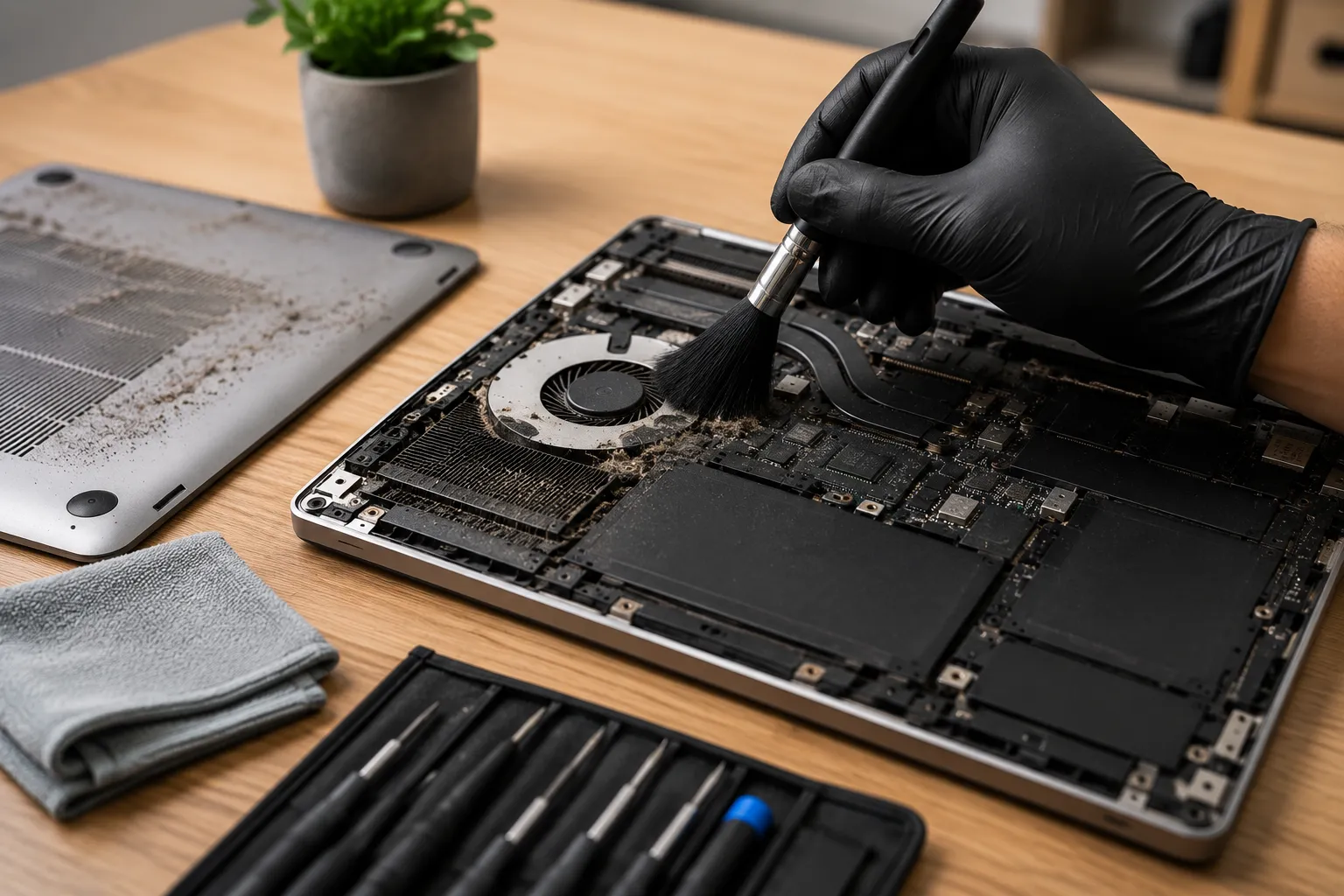
Many customers are surprised by how much difference professional internal cleaning can make. While cleaning won’t transform an outdated laptop into a brand-new machine, it often restores lost performance by allowing the cooling system to operate properly again.
Better Cooling Improves Performance
Once dust is removed from:
- Cooling fans
- Heat sinks
- Air vents
the laptop can maintain lower operating temperatures.
This allows the processor to maintain higher speeds without overheating.
Applications Run More Smoothly
Lower temperatures improve overall system stability.
Many users notice:
- Faster startup
- Smoother multitasking
- Better browsing performance
- Reduced freezing
- Improved responsiveness
These improvements occur because thermal throttling is reduced.
Battery Lasts Longer
Efficient cooling reduces unnecessary power consumption.
Lower operating temperatures help:
- Reduce battery stress
- Improve charging efficiency
- Slow long-term battery aging
Although cleaning doesn’t repair a worn battery, it helps healthy batteries perform more efficiently.
Quieter Everyday Operation
After professional cleaning, many laptops become noticeably quieter because the fan no longer needs to operate continuously at maximum speed.
This creates a more comfortable working environment.
Longer Hardware Lifespan
Reducing heat protects valuable components such as:
- Processor
- Graphics chip
- Motherboard
- SSD
- Memory
Regular maintenance helps extend the overall lifespan of the laptop.
Why Professional Cleaning Is Safer Than Doing It Yourself
Many online tutorials suggest opening a laptop and cleaning it at home using compressed air or household tools. While these videos make the process look simple, modern laptops contain delicate components that can easily be damaged without the correct equipment and experience.
Professional servicing ensures the cooling system is cleaned thoroughly without putting your device at risk.
Modern Laptops Are Difficult to Open
Many newer laptops use:
- Hidden clips
- Delicate ribbon cables
- Precision screws
- Thin display connectors
Improper disassembly can easily damage these parts.
Dust Must Be Removed Correctly
Simply blowing compressed air into the vents often pushes dust deeper inside the laptop rather than removing it completely.
Professional technicians safely:
- Remove cooling fans
- Clean heat sinks
- Clear ventilation channels
- Reassemble components correctly
This provides much more effective results.
Internal Components Need Inspection
During professional cleaning, technicians also inspect:
- Cooling fans
- Battery condition
- SSD health
- RAM connections
- Motherboard
- Signs of liquid damage
This helps identify developing problems before they become major repairs.
Preventing Accidental Damage
DIY cleaning may accidentally cause:
- Broken connectors
- Damaged fan blades
- Static electricity damage
- Missing screws
- Improper reassembly
Professional servicing greatly reduces these risks.
Honest Advice About Future Maintenance
Professional technicians don’t just clean your laptop—they also explain its overall condition and recommend any maintenance that may be needed in the future.
Whether you’re searching for Computer repair near you, trusted Computer Repair in Victoria, or reliable Computer repair in Langford, professional internal cleaning helps maintain performance while protecting your investment.
Conclusion
Dust may seem insignificant, but inside a laptop it can gradually reduce airflow, increase operating temperatures, and place unnecessary strain on important internal components. As the cooling system becomes less efficient, your laptop may respond with louder fan noise, slower performance, shorter battery life, and even unexpected shutdowns. Recognising these warning signs early allows you to address the problem before it develops into costly hardware damage.
While improving ventilation and keeping the exterior clean are helpful habits, accumulated dust inside the laptop requires proper tools and careful handling. Professional internal cleaning not only restores efficient cooling but also allows technicians to inspect the condition of the battery, cooling fan, SSD, and motherboard, helping prevent future problems.
At Blackapple Cellular, we provide trusted Computer repair near you using professional diagnostics, safe internal cleaning procedures, and experienced technicians who know how to keep laptops running efficiently. Whether you need Computer Repair in Victoria, Computer Repair Near You in Victoria, or dependable Computer repair in Langford, we’re committed to helping your laptop stay cooler, quieter, and perform at its best.
People Also Ask
How much does internal laptop cleaning cost in Victoria, BC?
Professional laptop cleaning generally costs $60–$120 CAD, making it an affordable way to prevent overheating and costly hardware damage.
How do I know if my laptop fan needs cleaning?
Key signs include a constantly loud fan, a laptop that feels unusually hot, slow performance, or sudden thermal shutdowns.
Can dust in a laptop cause permanent damage?
Yes. Severe dust traps extreme heat inside, which can permanently damage your processor, motherboard, SSD, or battery over time.
Can I clean my laptop fans with canned air at home?
Blowing air from the outside often pushes dust deeper into the fan and heat sink. Opening the laptop for a direct clean is much safer and more effective.
How long does laptop cleaning take at Blackapple Cellular?
Most internal cleanings at our Victoria and Langford locations are completed within 24 to 48 hours, with same-day service often available.
Frequently Asked Questions About Laptop Cleaning
How often should a laptop be professionally cleaned?
For most users, professional internal cleaning every 12–24 months is recommended. If you have pets, work in a dusty environment, or use your laptop daily, more frequent cleaning may be beneficial.
Can dust really slow down my laptop?
Yes. Dust restricts airflow, increases internal temperatures, and causes the processor to reduce performance through thermal throttling.
Is loud fan noise always caused by dust?
Not always. Background software, failing cooling fans, or hardware issues can also increase fan speed. Professional diagnostics identify the exact cause.
Will internal cleaning improve battery life?
Cleaning doesn’t repair an old battery, but lower operating temperatures reduce battery stress and help healthy batteries perform more efficiently.
Is it safe to clean my laptop myself?
Basic exterior cleaning is generally safe. However, opening the laptop without proper tools and experience may damage delicate internal components.
When should I seek professional computer repair?
If your laptop overheats, shuts down unexpectedly, runs loudly all the time, or becomes noticeably slower, professional inspection is recommended.